Set up Instructions for HCSD Staff
Prior to beginning enrollment, we recommend you make sure the [Duo Mobile] App is installed on your Smartphone or tablet and your device operating systems are up to date. If you are using a district assigned iPad, we have placed the Duo app in Self Service.
For HCSD staff members who do not have a district assigned device and are not able to use their smartphone, the tech department will assist you with a Security Key setup. Please let your Edtech Coach/Innovation and Discovery Specialist know so they can add you to a list for issuance of a security key fob.
OPTION 1.
QUICK setup Instructions
- Select your preferred MFA device type:
- A. Staff with a district device, may select your iPad or your phone
- B. Staff without a district device, you may select your phone or the district will provide you with a Duo Security key fob.
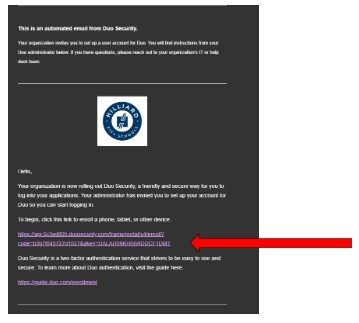
- On a laptop or desktop computer, using Google Chrome or Outlook client, open the email from Duo Security (no-reply@duosecurity.com) and click the link provided.
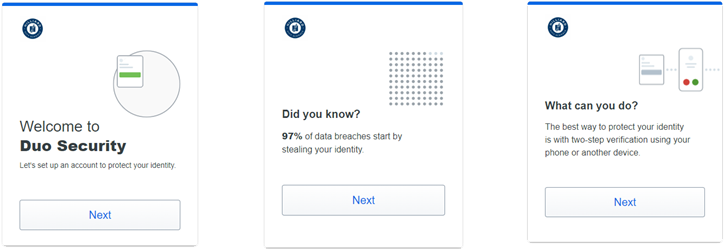
- Click through the instruction screens.
- On the Select an Option screen, choose Duo Mobile
- Enter your phone number if you are using a phone OR choose [I have a tablet] if using an iPad.
- If you selected your iPad or your phone, install the Duo Mobile app now from the App Store or Self-Service. (If you use Duo for another organization, see the footnote*)
- When QR code shows on your computer, open the Duo Mobile app on your mobile device (Make sure to allow Notifications and Camera use) and use this app to scan the code.
- Place your name in the Hilliard City Schools field.
- Finish through the screens to complete the setup. STOP HERE
- Now that you have finished enrolling, check your building’s enforcement date to begin using MFA/Duo to access your hboe email.
- AFTER YOUR BUILDING TURNS ON MFA, you will have the opportunity to add other MFA devices/options including the fingerprint reader on a laptop.
If you have a laptop with a fingerprint reader and want to use Touch ID for Duo MFA follow these steps.
OPTION 2.
Full Step by Step Instructions
Step 1 - Installing Duo Mobile
Install the Duo Mobile app. Note that the icon for Duo Mobile in the App or Play Store displays the Duo logo with a green background.

Do not select the Google Duo app (by Google LLC) for making video calls.
The app requires the following permissions to work appropriately:
- Allow notifications for the use of Duo Push or Passcodes
- Allow access to the camera, as you will need to scan a QR Code to complete enrollment.
Step 2 - Starting on your Computer or Laptop
Starting on your laptop or computer, and using Google Chrome or the Outlook client, log into your hboe.org email account, open the email that came from Duo Security (no-reply@duosecurity.com) inviting you to set up your Duo account. Click the blue link in this email to begin the enrollment process.
Click through the information screens on the page.
Skip the Duo Device Health screen
Step 3 - Duo Mobile app and Duo Push notifications or Passcodes
The HCSD Tech Dept recommends your initial method to be a mobile device that uses the Duo Mobile app and Duo Push notifications or Passcodes.
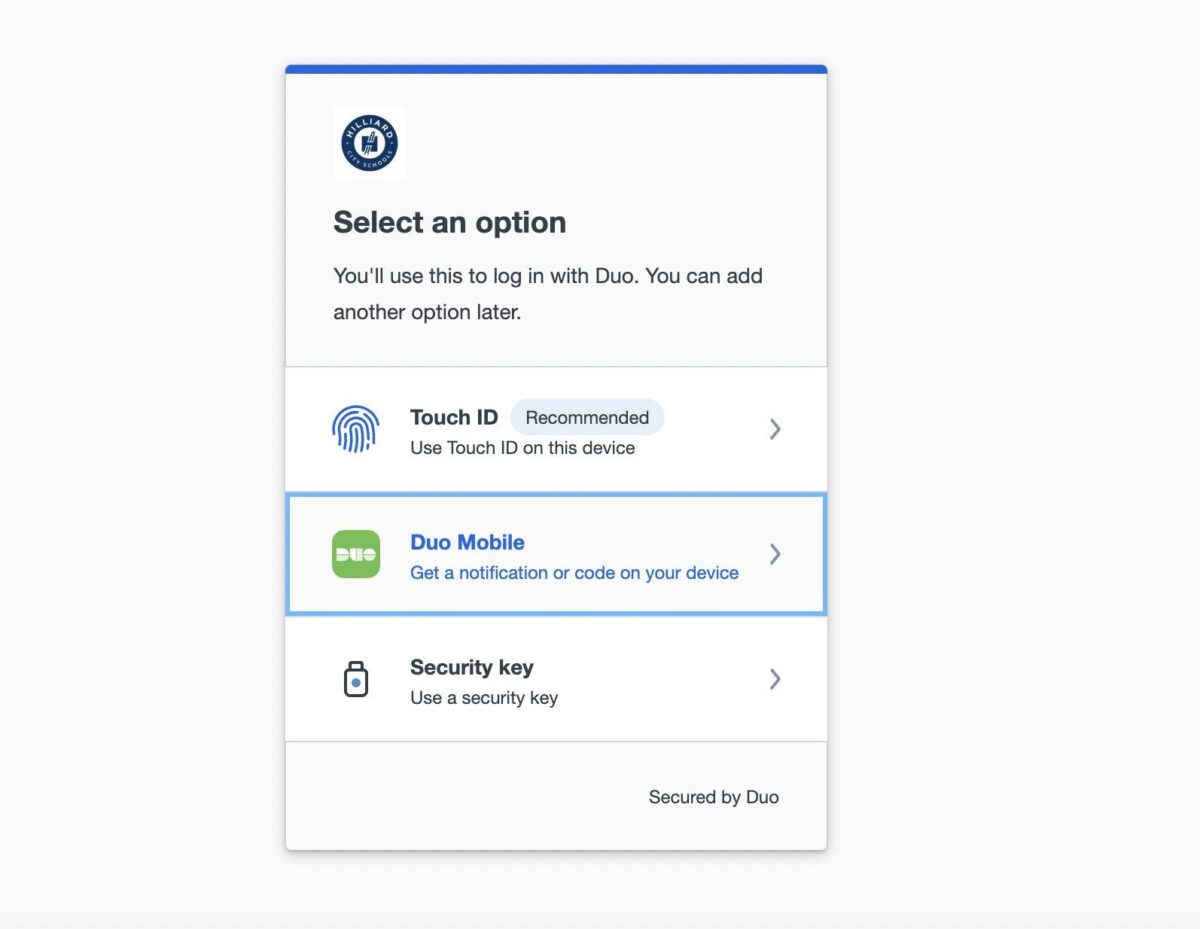
Next you may enter your phone number if you are using your phone, or you may select [I have a tablet] if you are using your iPad.
Touch ID (macOS with Chrome) may be selected as a secondary option. You will have a chance to make a secondary selection later.
For HCSD staff members who do not have a district assigned device and are not able to use their smartphone, the tech department will assist you with Security Key fob set up. Please attend a support session for guided assistance and issuance of a security key fob.
Step 4 - Mobile Device set up
When you are sure the Duo Mobile app has been installed on your phone or tablet click Next.
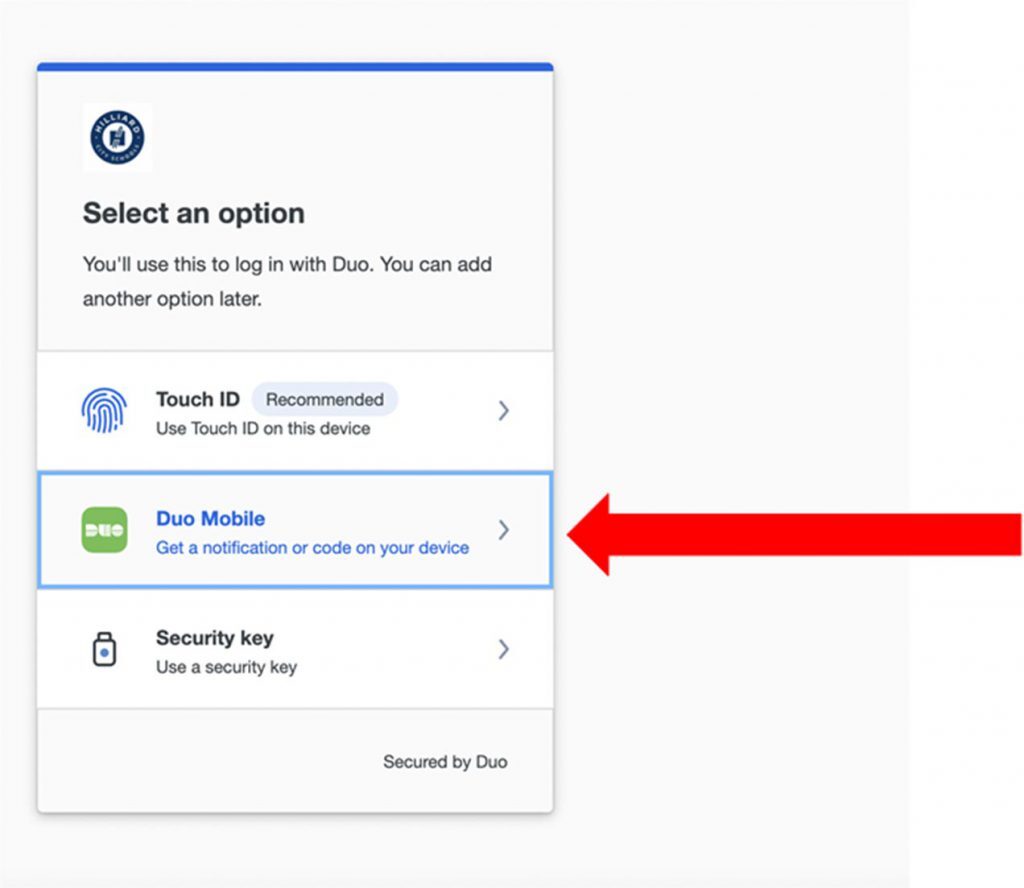
Step 5 - Setup account: Entering your Phone Number
Setup account – enter your phone number if using your phone or choose “I have a Tablet” if using your iPad.
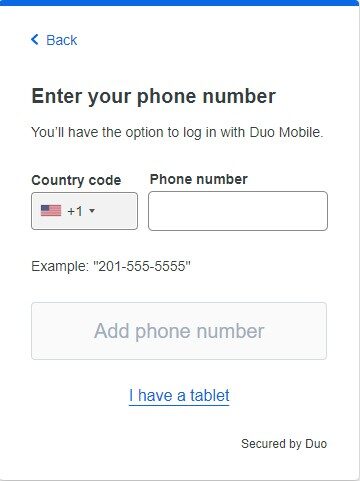
Touch ID (macOS with Chrome) may be selected as a secondary option. You will have a chance to make a secondary selection later.
For HCSD staff members who do not have a district assigned device and are not able to use their smartphone, the tech department will assist you with Security Key fob set up. Please attend a support session for guided assistance and issuance of a security key fob.
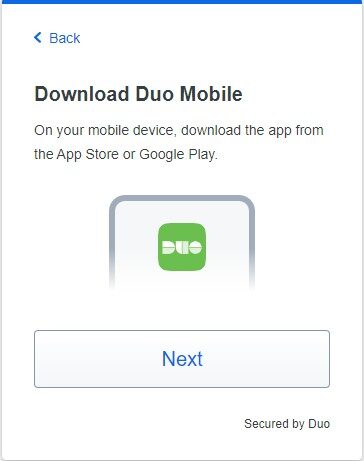
Step - 6 Duo Mobile app has been installed on your phone or tablet
When you are sure the Duo Mobile app has been installed on your phone or tablet click Next.
Step 7 - Use QR code
Choose – Use QR code – a QR code should appear on your computer screen
- Now, open the Duo Mobile app on your device, be sure to allow Notifications and the Camera.
- Choose Set up account
- On the Link your account screen, choose ‘Use a QR code’
- Use your phone or tablet to scan the QR code on the computer screen.
- On the Name your account screen, tap ‘Next’
Step 8 - The account ‘Hilliard City Schools
The account ‘Hilliard City Schools’ should populate the account name field automatically, change this to
- your name ( ie. firstname lastname )
then tap ‘Save’
Step 9 - When MFA is turned on for you
Hit ‘Skip’ on the Account linked screen. Do not ‘Practice now’
On the Almost there screen, tap ‘OK’ and go back to your computer and try to log into email again. (You may have to log in and out of email several times for the sync to finish)
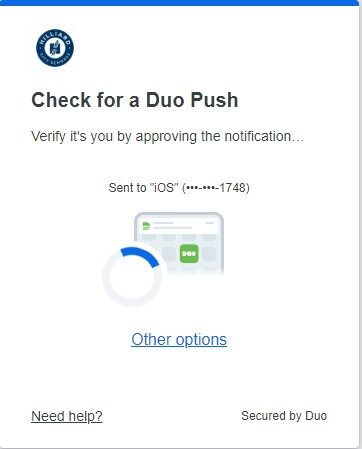
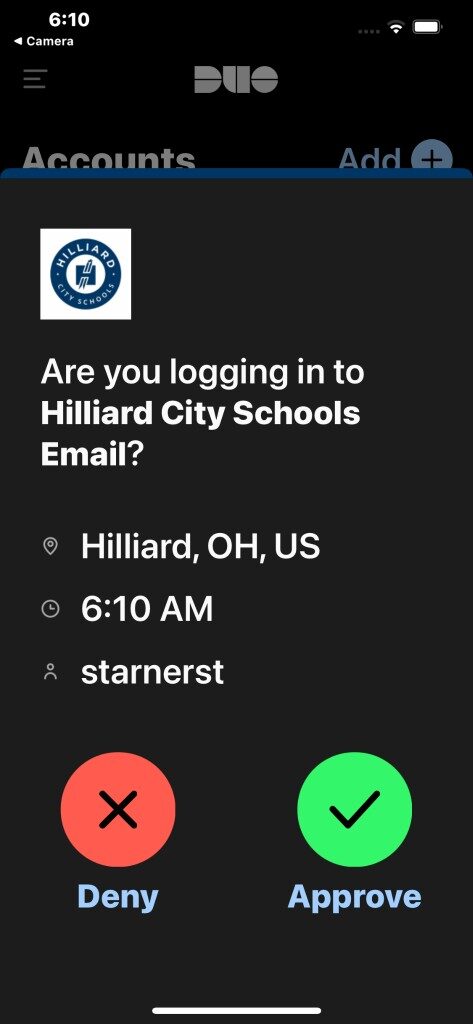
Here’s what you should see when MFA is turned on for you:
1st
On your computer
(when logging into email)
2nd
On your Phone/iPad
Step 10 - Touch ID for Duo MFA
You have now finished the DUO enrollment process. Check back to your email from your IDS/Ed Tech Coach for your building’s enforcement date to begin using MFA/DUO to access your hboe email.
Step 11 - Adding other MFA devices/options
AFTER YOUR BUILDING TURNS ON MFA, you will have the opportunity to add other MFA devices/options including the fingerprint reader on a laptop.
* If you use Duo already (for another organization or university, etc.), you simply need to Add HCSD as an account. To do this, click through the above steps 1-7, then open the Duo app on your mobile device and tap Add+ in the top right and then tap Use QR Code. Proceed scanning the code on your computer and follow the steps to complete the setup process.